

Wan 2.2 is a new generation multimodal generative model launched by WAN AI. This model adopts an innovative MoE (Mixture of Experts) architecture, consisting of high-noise and low-noise expert models. It can divide expert models according to denoising timesteps, thus generating higher quality video content.
Wan 2.2 has three core features: cinematic-level aesthetic control, deeply integrating professional film industry aesthetic standards, supporting multi-dimensional visual control such as lighting, color, and composition; large-scale complex motion, easily restoring various complex motions and enhancing the smoothness and controllability of motion; precise semantic compliance, excelling in complex scenes and multi-object generation, better restoring users’ creative intentions.
The model supports multiple generation modes such as text-to-video and image-to-video, suitable for content creation, artistic creation, education and training, and other application scenarios.
Model Highlights
- Cinematic-level Aesthetic Control: Professional camera language, supports multi-dimensional visual control such as lighting, color, and composition
- Large-scale Complex Motion: Smoothly restores various complex motions, enhances motion controllability and naturalness
- Precise Semantic Compliance: Complex scene understanding, multi-object generation, better restoring creative intentions
- Efficient Compression Technology: 5B version with high compression ratio VAE, memory optimization, supports mixed training
Wan2.2 Open Source Model Versions
The Wan2.2 series models are based on the Apache 2.0 open source license and support commercial use. The Apache 2.0 license allows you to freely use, modify, and distribute these models, including for commercial purposes, as long as you retain the original copyright notice and license text.| Model Type | Model Name | Parameters | Main Function | Model Repository |
|---|---|---|---|---|
| Hybrid Model | Wan2.2-TI2V-5B | 5B | Hybrid version supporting both text-to-video and image-to-video, a single model meets two core task requirements | 🤗 Wan2.2-TI2V-5B |
| Image-to-Video | Wan2.2-I2V-A14B | 14B | Converts static images into dynamic videos, maintaining content consistency and smooth dynamic process | 🤗 Wan2.2-I2V-A14B |
| Text-to-Video | Wan2.2-T2V-A14B | 14B | Generates high-quality videos from text descriptions, with cinematic-level aesthetic control and precise semantic compliance | 🤗 Wan2.2-T2V-A14B |
Wan2.2 TI2V 5B Hybrid Version Workflow Example
1. Download Workflow File
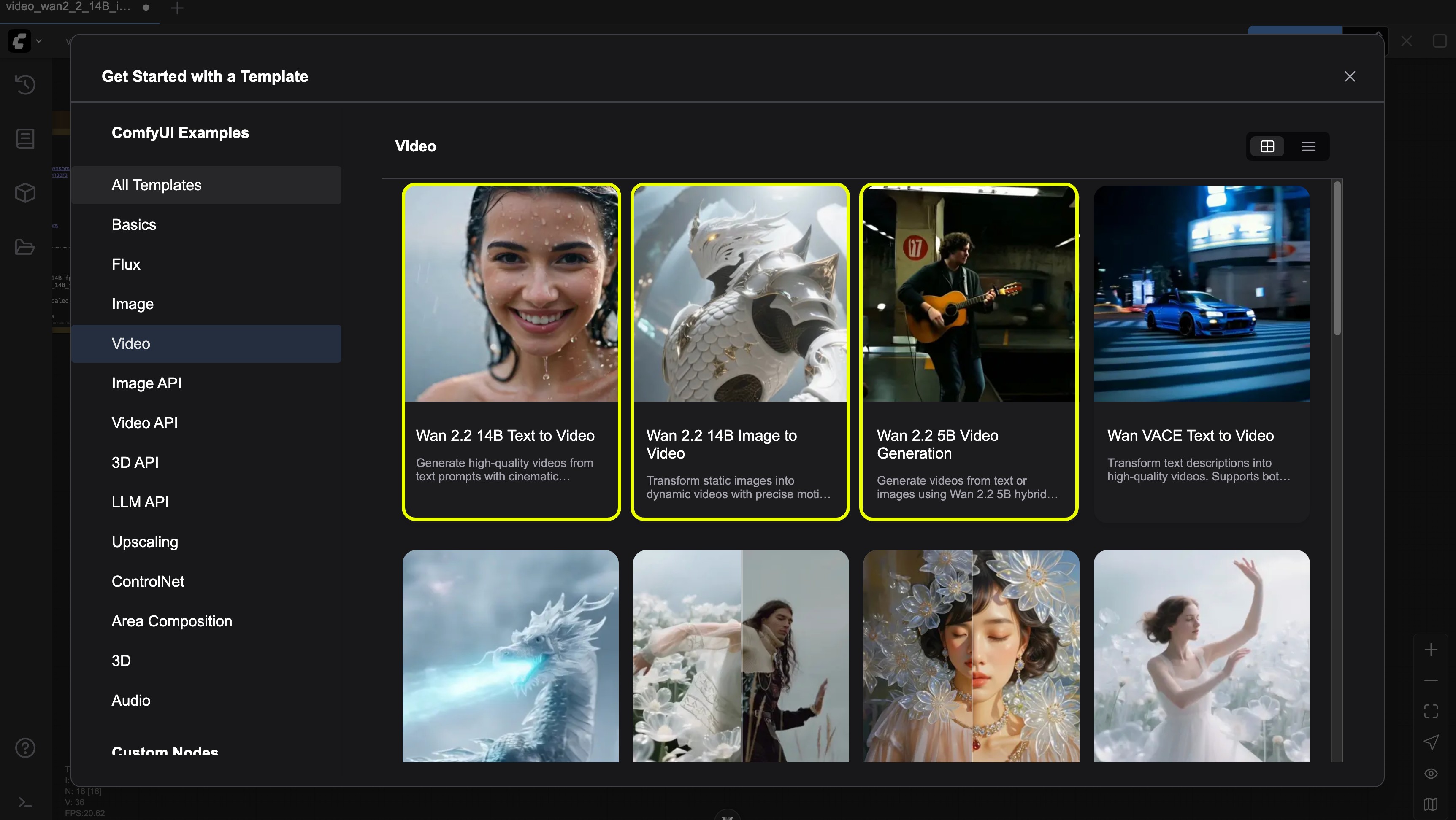
Please update your ComfyUI to the latest version, and through the menuWorkflow -> Browse Templates -> Video, find “Wan2.2 5B video generation” to load the workflow.
2. Manually Download Models
Diffusion Model VAE Text Encoder3. Follow the Workflow Steps
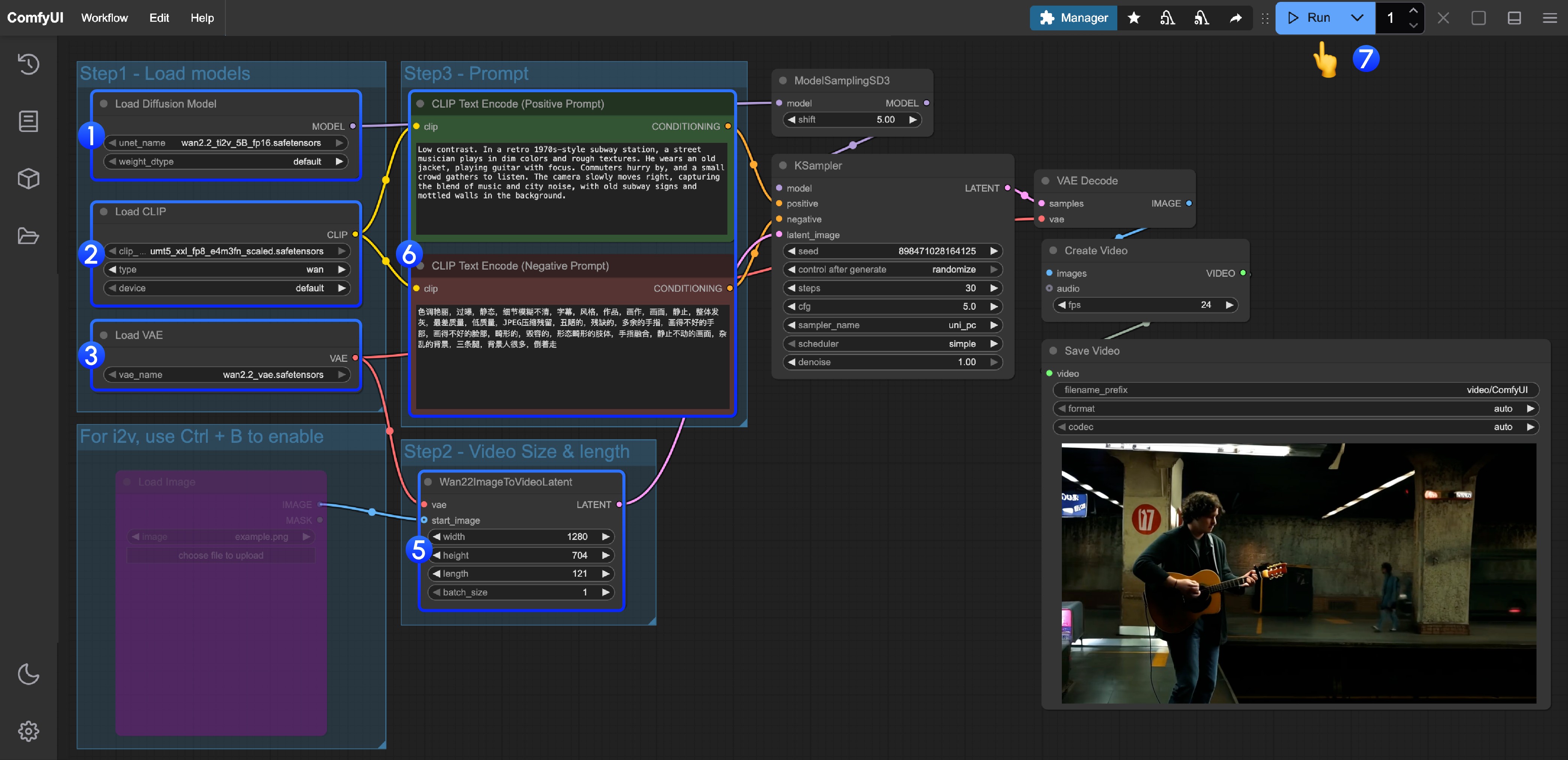
- Ensure the
Load Diffusion Modelnode loads thewan2.2_ti2v_5B_fp16.safetensorsmodel. - Ensure the
Load CLIPnode loads theumt5_xxl_fp8_e4m3fn_scaled.safetensorsmodel. - Ensure the
Load VAEnode loads thewan2.2_vae.safetensorsmodel. - (Optional) If you need to perform image-to-video generation, you can use the shortcut Ctrl+B to enable the
Load imagenode to upload an image. - (Optional) In the
Wan22ImageToVideoLatentnode, you can adjust the size settings and the total number of video frames (length). - (Optional) If you need to modify the prompts (positive and negative), please do so in the
CLIP Text Encodernode at step 5. - Click the
Runbutton, or use the shortcutCtrl(cmd) + Enterto execute video generation.
Wan2.2 14B T2V Text-to-Video Workflow Example
1. Workflow File
Please update your ComfyUI to the latest version, and through the menuWorkflow -> Browse Templates -> Video, find “Wan2.2 14B T2V” to load the workflow.
2. Manually Download Models
Diffusion Model VAE Text Encoder3. Follow the Workflow Steps
- Ensure the first
Load Diffusion Modelnode loads thewan2.2_t2v_high_noise_14B_fp8_scaled.safetensorsmodel. - Ensure the second
Load Diffusion Modelnode loads thewan2.2_t2v_low_noise_14B_fp8_scaled.safetensorsmodel. - Ensure the
Load CLIPnode loads theumt5_xxl_fp8_e4m3fn_scaled.safetensorsmodel. - Ensure the
Load VAEnode loads thewan_2.1_vae.safetensorsmodel. - (Optional) In the
EmptyHunyuanLatentVideonode, you can adjust the size settings and the total number of video frames (length). - (Optional) If you need to modify the prompts (positive and negative), please do so in the
CLIP Text Encodernode at step 5. - Click the
Runbutton, or use the shortcutCtrl(cmd) + Enterto execute video generation.
Wan2.2 14B I2V Image-to-Video Workflow Example
1. Workflow File
Please update your ComfyUI to the latest version, and through the menuWorkflow -> Browse Templates -> Video, find “Wan2.2 14B I2V” to load the workflow.
You can use the following image as input:

2. Manually Download Models
Diffusion Model VAE Text Encoder3. Follow the Workflow Steps
- Make sure the first
Load Diffusion Modelnode loads thewan2.2_t2v_high_noise_14B_fp8_scaled.safetensorsmodel. - Make sure the second
Load Diffusion Modelnode loads thewan2.2_t2v_low_noise_14B_fp8_scaled.safetensorsmodel. - Make sure the
Load CLIPnode loads theumt5_xxl_fp8_e4m3fn_scaled.safetensorsmodel. - Make sure the
Load VAEnode loads thewan_2.1_vae.safetensorsmodel. - In the
Load Imagenode, upload the image to be used as the initial frame. - If you need to modify the prompts (positive and negative), do so in the
CLIP Text Encodernode at step 6. - (Optional) In
EmptyHunyuanLatentVideo, you can adjust the size settings and the total number of video frames (length). - Click the
Runbutton, or use the shortcutCtrl(cmd) + Enterto execute video generation.